

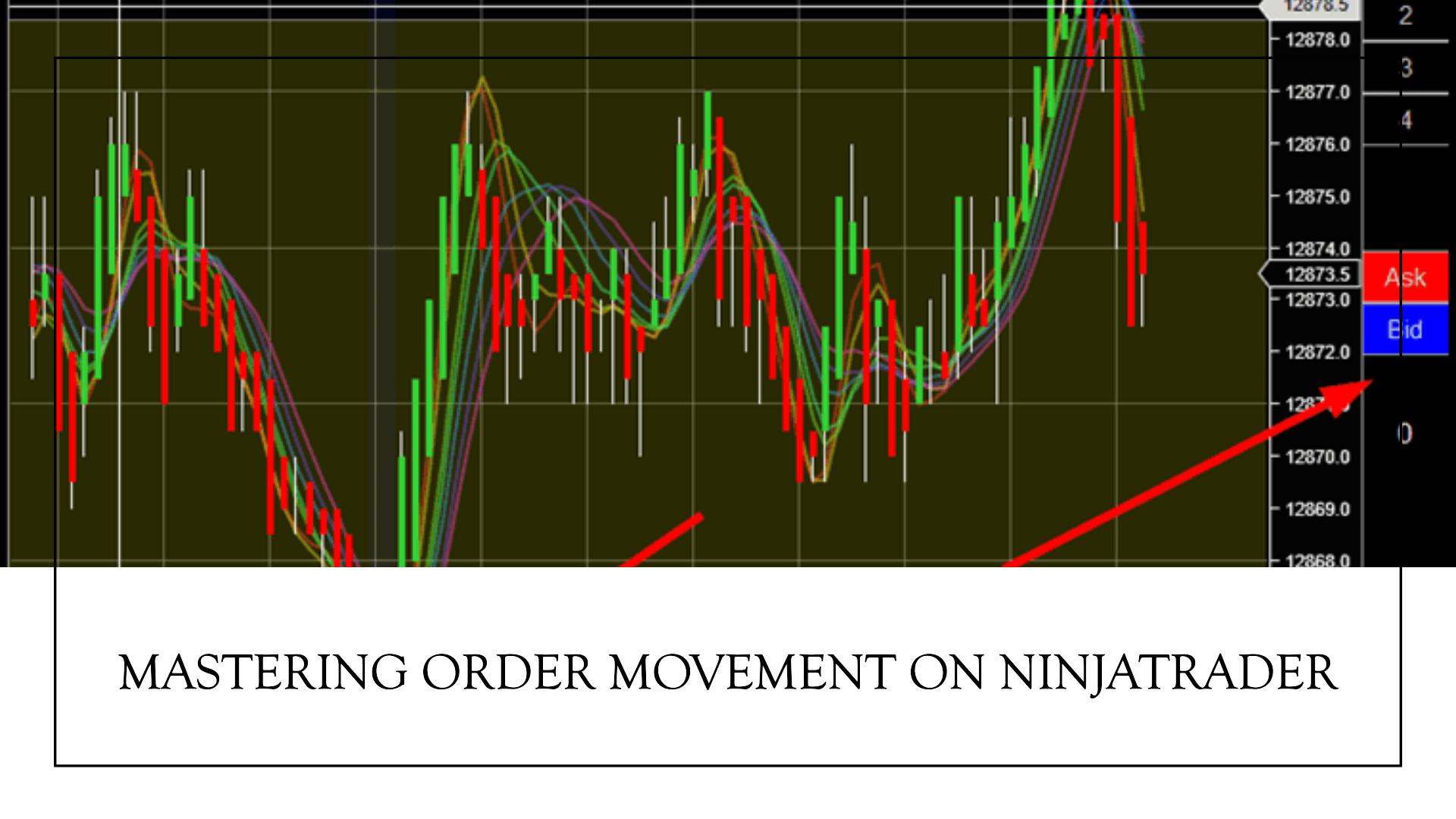
If you are learning futures trading with NinjaTrader, one of the most useful skills to master is knowing how to move orders in the DOM on NinjaTrader. The Depth of Market (DOM), known as the SuperDOM in NinjaTrader, gives traders a visual price ladder where they can place, modify, and cancel orders quickly.
For beginners, the DOM can look complicated at first. However, once you understand how prices, working orders, and mouse controls work together, moving an order becomes straightforward.
In this guide, we will explain how to move orders in the DOM on NinjaTrader using both direct order modification and right-click controls.
What Is the DOM in NinjaTrader?
The DOM, or Depth of Market, displays market prices and available market depth in a price ladder. NinjaTrader’s SuperDOM is designed for order entry and position management and is particularly geared toward futures trading.
You can open the SuperDOM from the NinjaTrader Control Center by selecting New and then choosing Static SuperDOM or Dynamic SuperDOM.
Inside the DOM, you will typically see:
- The current price ladder
- Bid and ask information
- Buy and sell columns
- Working orders
- Market depth
- Order quantity
- Stop-loss and profit-target orders
- Position information
Your working orders are displayed directly on the price ladder, making it possible to see where an order is located and modify it as the market changes.
Why Would You Move an Order?
There are many reasons a trader might want to move a working order.
For example, suppose you place a buy limit order at 5,000 and the market changes. You may decide that you want your order at 4,999 instead. Rather than canceling the existing order and creating a new one, NinjaTrader allows you to modify the order’s price directly within the SuperDOM.
You might also move a stop-loss farther away from the market or adjust a profit target as your trading plan changes.
The important point is that moving an order changes its working price. It does not mean that you are simply moving an icon on the screen.
How to Move Orders in the DOM on NinjaTrader
The first method is direct modification using the mouse.
Step 1: Find Your Working Order
Open the NinjaTrader SuperDOM and make sure the correct instrument and account are selected.
Locate your working order on the price ladder. NinjaTrader uses visual indicators to distinguish different order types, including limit, stop-market, stop-limit, and MIT orders.
Before modifying anything, double-check the order price and quantity.
Step 2: Select the Order
Using the left mouse button, click the working order you want to modify.
After selecting the order, NinjaTrader changes the mouse cursor to indicate that you can choose a new price.
Step 3: Select the New Price
Move your mouse to the new price level on the DOM and click again.
For example:
Original order: Buy Limit at 5,000
New order: Buy Limit at 4,999
After the second click, NinjaTrader sends the modification for the order.
According to NinjaTrader’s official documentation, this click-to-select and click-to-modify method is preferred over traditional drag-and-drop because it reduces the possibility of accidentally releasing the mouse at the wrong price.
Step 4: Cancel a Modification if Necessary
If you select an order but change your mind before choosing the new price, press the Esc key to cancel the price modification.
This is particularly useful when practicing because it gives you a way to back out before submitting the change.
Can You Drag Orders in the NinjaTrader DOM?
Many traders searching for how to move orders in the DOM on NinjaTrader expect a traditional drag-and-drop function.
However, NinjaTrader’s official SuperDOM documentation recommends the click-to-select, click-at-new-price method rather than relying on drag-and-drop for order modification. The reason is simple: dragging can introduce an additional risk of accidentally releasing the mouse at an unintended price.
Therefore, if you are learning the NinjaTrader DOM, it is better to become comfortable with the standard two-click modification process.
Moving Orders Using the Right Mouse Button
The second method involves the right mouse button.
When you place the cursor over an order and hold down the right mouse button, NinjaTrader can display orders consolidated at that price. You can then select an individual order and adjust its price in one-tick increments.
This method can be especially helpful when multiple orders are located at the same price level.
For example, imagine several orders are displayed at the same price. Instead of modifying all of them together, the right-click functionality allows you to view the individual orders and select the one you want to manage.
This is an important distinction for beginners because multiple orders at one price may be consolidated visually in the DOM.
How to Move Stop-Loss and Profit-Target Orders
You can also modify stop-loss and profit-target orders in the SuperDOM.
The basic process is similar:
- Click the stop-loss or profit-target order.
- Select the new price on the DOM.
- Confirm the modification.
NinjaTrader also provides an optional Single Click Order Modification feature for ATM stop-loss and profit-target orders. This feature can be enabled through the SuperDOM Properties window and is intended to make order modification faster.
Beginners should understand the standard modification process before enabling advanced features. Faster order entry is useful, but speed should never come at the expense of accuracy.
What Happens When Multiple Orders Are at the Same Price?
This is another important concept when learning how to move orders in the DOM on NinjaTrader.
If multiple orders are consolidated at the same price level, modifying the price through the standard modification process can affect all orders at that price level. NinjaTrader specifically notes this behavior for stop-loss and profit-target orders.
If you need to work with an individual order, use the appropriate order-selection controls rather than assuming that every visible order marker represents only one order.
Tips for Beginners Using the NinjaTrader DOM
Before modifying live orders, practice in a simulated environment so you can become familiar with the price ladder and mouse controls.
Here are some useful beginner tips:
1. Check the account first.
Make sure the correct trading account is selected before placing or modifying an order.
2. Check the instrument.
Verify that you are working with the intended futures contract or other instrument.
3. Confirm the new price.
Always look carefully at the price level before completing a modification.
4. Learn the mouse controls.
The SuperDOM uses the left, middle, and right mouse buttons for different functions, so understanding these controls is important.
5. Be careful with fast markets.
Prices can change quickly, and an order modification may have different results depending on market conditions and execution timing.
6. Practice before trading live.
The best way to learn the DOM is to practice order placement, modification, and cancellation until the process becomes familiar.
Final Thoughts
Learning how to move orders in the DOM on NinjaTrader is an important step for anyone who wants to become comfortable with active order management.
The main method is simple: select your working order with the left mouse button, choose the new price, and click again to submit the modification. NinjaTrader also provides right-mouse-button functionality for working with orders at the same price and making individual price adjustments.
Although beginners may initially look for a drag-and-drop solution, NinjaTrader’s official documentation recommends its click-to-select and click-to-modify approach because it can reduce accidental price changes. thetradeinfo
Once you understand these controls, the NinjaTrader SuperDOM becomes much easier to navigate. Start with simulated trading, practice moving different order types, and always verify the instrument, account, order quantity, and new price before making changes to a live order.